SHARED CARE / HOW TO
Shared Care, step by step
Coming soon · Preview guideShared Care is not live yet. This guide previews the planned experience; publishing it does not enable the feature.
Keep family-written tasks and shared notes together. Learn what the family approves, what a caretaker can do, and how to stay on the same page.
Before you start
Shared Care is not publicly enabled. These steps preview the upcoming experience, not a feature you can use in App Store version 1.2.6. An updated app and server availability will both be needed; updating alone will not unlock it. Final labels may change before release.
The family uses an owner or admin account in the Mirror Health app on iPhone or iPad. The caretaker uses their own account in the app or at caretaker.usemirrorhealth.com on a computer.
Connect the caretaker and approve the people and sharing duration first. A QR code or six-digit connection does not automatically grant Shared Care permission. Follow the Caretaker Mode guide below if you are not connected yet.
Use Shared Care for informational notes and family-written tasks. It is not an emergency channel, a medical record, a medication-administration record, or a replacement for direct communication and your care plan.
Let’s do it.
One picture. One step.
- 1Family
Open Shared Care for your person
When the feature becomes available, open Settings → People in the family app, choose the person, and open Shared Care. Read the household notice and complete the opt-in if it appears before adding information.
If Shared Care is missing or says Not available yet, it has not been enabled for your account. Reconnecting a caretaker will not unlock it.
- 2Family
Choose the caretaker’s permission
Open Settings → People → Manage Shared Access and choose the caretaker connection. Under Shared notes & tasks, choose Change shared-care access. Select Read notes and tasks for viewing, or Add notes and complete tasks for contributions. Read the confirmation and confirm access.
Permission applies to the people covered by that connection. This does not authorize editing conditions or medications. Choose the least access the caretaker needs.
- 3Caretaker
Open the same person’s shared space
On the caretaker board, select the person. In the app, open Shared Care in their panel. On a computer, open the person’s Today panel and find Shared care. Look for family tasks and shared notes, separate from your local note.
View only means you can read but cannot add notes, correct them or complete tasks. Ask the family to change permission if contribution is needed.
- 4Family
Add a clear, everyday task
In the family app’s Shared Care screen, use the add-task control. Write a short title, such as “Check backpack,” and optional details in your own words. Tap Add and wait for the task to appear. The caretaker can then refresh the shared space to see it.
The family creates tasks. Caretakers with contribution permission can report open tasks done, but cannot create, reopen or cancel family tasks. Mirror does not suggest doses or care schedules.
- 5Family & caretaker
Share a note, not a local reminder
With contribution permission, write a brief update in the shared-note composer and select Share in the app or Share note on the web. Wait for confirmation and check the note appears. The family can also add notes in the app. Refresh the other device to check the saved update.
A local caretaker note stays on that device and is not sent to the family. Shared notes are part of the family’s record and do not disappear merely because caretaker access ends. Share only relevant information.
- 6Family & caretaker
Report completion and correct mistakes
For an open task, a contributing caretaker selects Mark Done in the app or Mark complete on the web. Wait for the saved result. To fix a shared note, choose Correct in the app or Add correction on the web, write the correction and share it. Caretakers can correct their own notes; family owners and admins can correct any note.
Done is someone’s report, not clinical verification. A correction does not silently replace the original. The original remains marked as corrected for people authorized to see it.
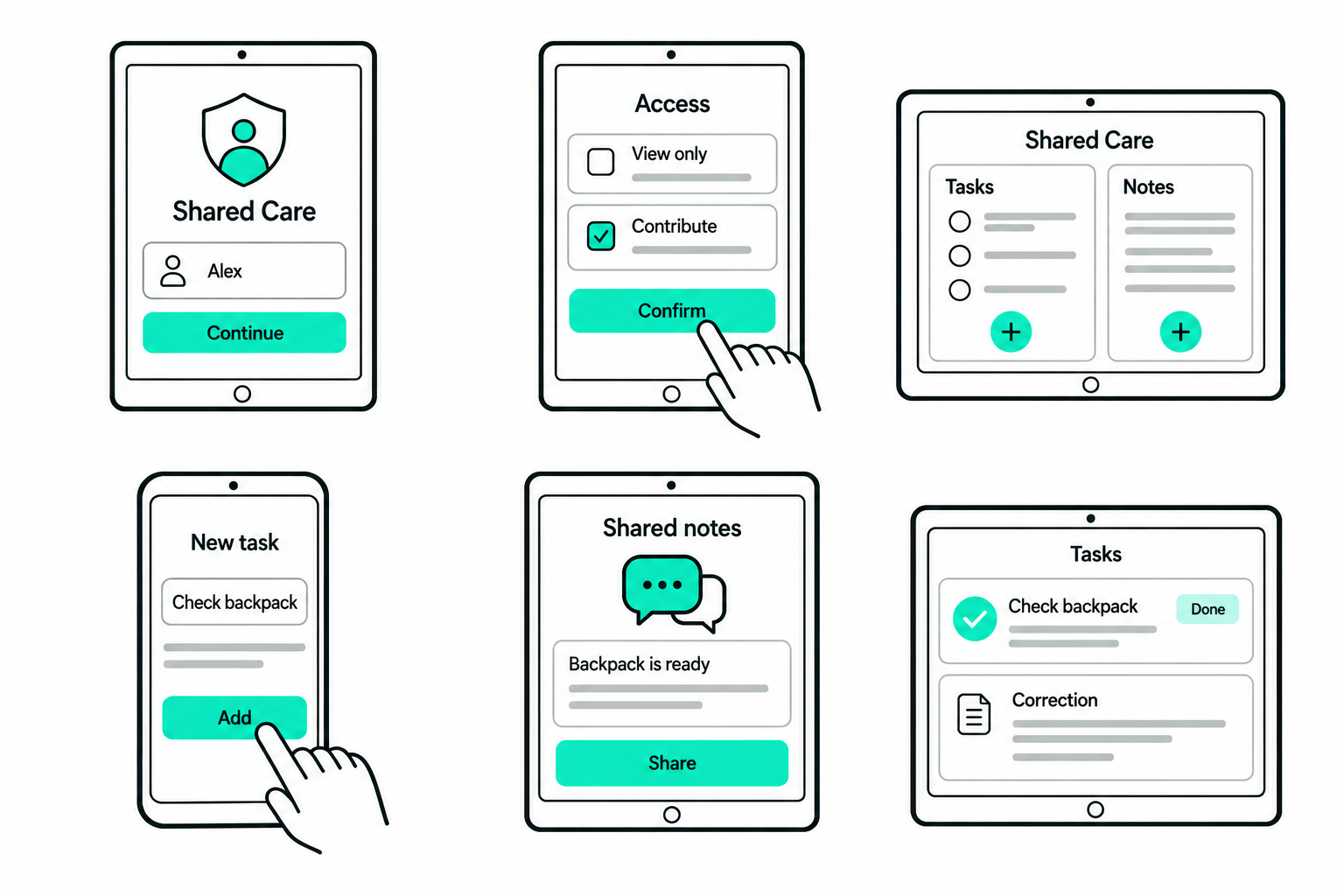
Simplified illustrations show example tasks and notes, not exact screenshots. Available controls depend on your role; caretakers cannot add family tasks. Final screens may change before release.
Who can do what?
Family owners and admins can add and correct notes, create tasks, mark them done, reopen completed tasks, cancel tasks and review Change History in the app. Cancellation is final. A caretaker with contribution access can add notes, correct their own notes and complete open tasks. Read-only caretakers cannot make changes. Household viewers do not gain access through these steps.
How do I remove Shared Care access?
In the family app, open the caretaker connection under Manage Shared Access. Under Shared notes & tasks, choose No shared-care access and confirm Remove shared-care access. This removes notes/tasks access without changing glucose viewing or health-profile editing permissions. To end the caretaker connection itself, use End Access. Another authorized connection may still provide access.
Will a new caretaker see every old note?
No. Caretakers see notes from their authorized Shared Care access periods, not the family’s entire note history. After a new connection, the family must grant Shared Care access again. Notes from earlier authorized periods may be visible again, but notes written during an unauthorized gap remain hidden.
Does it update instantly on every device?
Do not assume instant delivery or that another person has read a note. Wait for your save to be confirmed, then refresh the other device. Contact the family or caretaker directly for anything time-sensitive. Shared Care is not an emergency notification system.
My save was not confirmed. Should I send it again?
Restore your connection and use Retry in the app or Retry same action on the web. This retries the same request rather than intentionally creating a new note. Do not repeatedly create replacement notes. Keep the screen open while resolving the save; drafts are not a permanent backup and can be cleared when access ends, you sign out, or the screen closes.
Someone changed the task while I was looking at it.
Review the latest task before acting. The app uses Reviewed; the website offers Review latest tasks. Do not assume your earlier action succeeded. If someone already corrected a note, read their correction before deciding what to do with your draft.
Why did notes or task controls disappear?
Access may have expired, the family may have changed permission, or Shared Care may have been disabled. Refresh while online and ask the family to review the connection. Signing out clears shared content. The web portal also clears shared content and drafts when the tab goes into the background, then checks access again when you return.
Can I delete a shared note?
The normal workflow adds a correction while retaining the original. For a privacy-related removal request, contact info@usemirrorhealth.com. Ending a connection is not the same as deleting the family’s records. Consult the published privacy policy for the policy in effect when the feature launches.
Is Shared Care the same as Health Profile?
No. Shared Care is for notes and family-written tasks. Health Profile holds reported conditions, communication needs and medication information. Its viewing and editing permissions are separate. Shared Care contribution permission does not let a caretaker change the health profile.