CARETAKER MODE / HOW TO
Connect a caretaker
Share with someone you trust. The family chooses the people and the time, and the caretaker gets one clear view.
Before you start
The family needs Mirror Health on an iPhone or iPad, signed in to the family account, with a working glucose connection.
The caretaker uses their own account on a phone, tablet, or computer. Have the family’s device nearby to scan the code.
Let’s do it.
One picture. One step.
- 1Caretaker
Sign in as the caretaker
On iPhone or iPad, open Mirror Health and choose “I’m a caretaker.” Sign in or create your own account, then complete your display information. On a computer, sign in at caretaker.usemirrorhealth.com.
You do not need the family’s CGM username or password.
- 2Caretaker
Show your pairing code
Tap Add Person on your caretaker board. Keep the Connect a Person screen open so the family can scan its QR code.
This step is the same whether your board is on a phone, tablet, or computer.
- 3Family
Scan with the family’s phone
Open Camera on the family’s iPhone or iPad. Point it at the caretaker’s QR code and tap the Mirror Health link that appears.
Use the device signed in to the family account that manages these people.
- 4Family
Choose people and a time
On Approve Device, select the people to share. Under Share for, choose 2 hours, 8 hours, 24 hours, 7 days, or 30 days. Add an optional label to help recognize this connection later.
Choose only the people and time this caretaker needs.
- 5Family
Approve the connection
Review your selection and tap Approve Device. When Device Connected appears, tap Done. Scanning the code alone does not grant access.
- 6Caretaker
View your shared people
Return to the caretaker board. The approved people appear as the connection refreshes. Tap a person to see their available glucose history and shared care information.
Always check reading freshness. A displayed reading may be older than the current time.
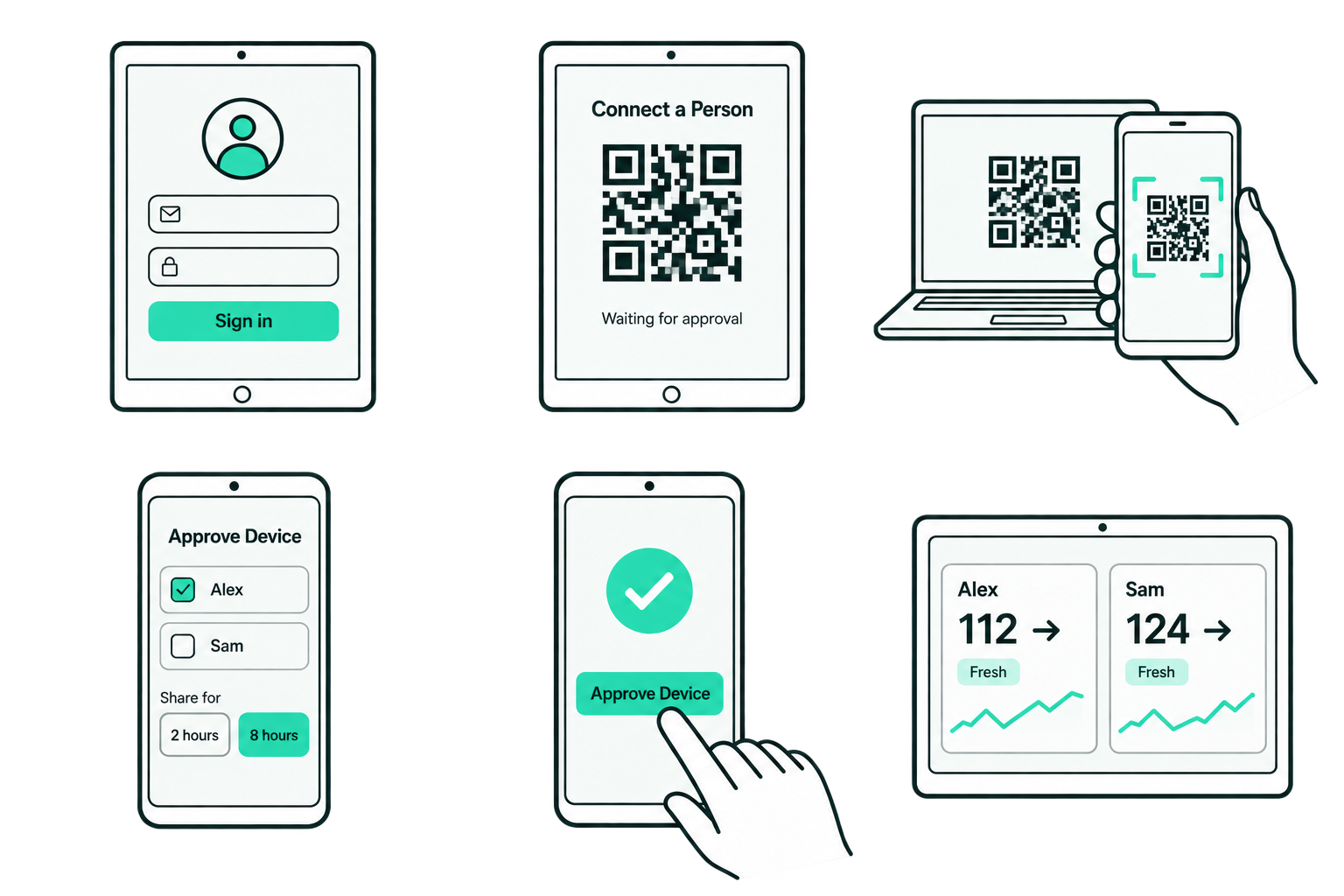
Illustrations show example people and readings. Your layout may vary slightly by device.
Finished sharing?
You hold the keys.
Access ends at the time you approved. You can also end it earlier in the family app.
- 1
Open shared access
Go to Settings → People → Manage Shared Access.
- 2
Choose the connection
Find the caretaker or device you want to disconnect.
- 3
End and confirm
Tap End Access, then confirm End Access again. The person disappears when the caretaker app next checks access.
The QR code expired. What do I do?
Keep the caretaker screen open and choose Show a New Code when it appears. On the web portal, generate a fresh pairing code from Add Person. Scan the new code and approve it. Pairing codes last about 10 minutes; that is separate from the sharing duration the family chooses.
The person has not appeared yet.
Check that the family tapped Approve Device and saw Device Connected. Make sure both devices are online and refresh the caretaker board. If access has ended, the family will need to approve a new connection.
Can I use a computer instead of an Apple device?
Yes. The caretaker can use the web portal in a browser on a computer. The family still approves the QR connection using Mirror Health on an iPhone or iPad. Keep the portal open and connected to the internet to see updates.
Can I send a link instead?
In the family app, go to Settings → People → Manage Shared Access → Create Invite. Choose people and a duration, then tap Create Link and Share. The caretaker opens that link on an iPhone or iPad with Mirror Health installed and follows Use an Invite. For computer setup, use the QR steps above.
Why is a glucose reading old or missing?
Check the reading’s freshness, your internet connection, and the family’s connected glucose source. Mirror can only display available readings. Keep the official CGM app and alerts active, and contact the family if the source connection needs attention.