FREESTYLE LIBRE / HOW TO
Connect FreeStyle Libre
Mirror connects through LibreLinkUp. First make sure the person’s readings are visible there, then bring that connection into Mirror Health.
Before you start
You need a supported Libre setup sharing readings to a LibreLinkUp account. Mirror uses the LibreLinkUp account that follows the person, not your Mirror login.
Use the family view in Mirror on an iPhone or iPad. Make the intended person active before opening Connections. Availability and menu names in Libre apps can vary by app version and region.
Let’s do it.
One picture. One step.
- 1
Set up the LibreLinkUp invitation
In the sensor wearer’s supported Libre app, open Connected Apps → LibreLinkUp, then Connect or Manage → Add Connection. Enter the follower’s details and email, then send the invitation.
If this sharing connection already works, you can move to the next step.
- 2
Accept and check LibreLinkUp
Open LibreLinkUp, sign in or create the account using the invited email, and accept the connection. Complete any account or terms prompts there. Confirm the correct person and their readings appear.
Use this LibreLinkUp email and password in Mirror. If readings do not appear here yet, finish the Libre sharing setup first.
- 3
Open FreeStyle Libre in Mirror
With the correct person active in Mirror Health, go to Settings → Connections → FreeStyle Libre. The page will say Connect with LibreLinkUp.
- 4
Sign in with LibreLinkUp
Leave Region set to Automatic unless you need to select your account’s region. Enter your LibreLinkUp email and password. Read and select the storage-consent checkbox if you agree, then tap Sign In.
- 5
Choose the right person if asked
If this LibreLinkUp account follows more than one person, Mirror asks who this profile is. Select the person who matches your active Mirror profile, then tap Sign In again.
If no person picker appears and the connection succeeds, continue to the final step.
- 6
Confirm and view readings
When FreeStyle Libre Connected appears, tap Done. Return to Glance for that person and check the source and reading time as the display refreshes.
Keep the official Libre app and alerts active. Mirror shows available shared data and does not connect directly to the sensor.
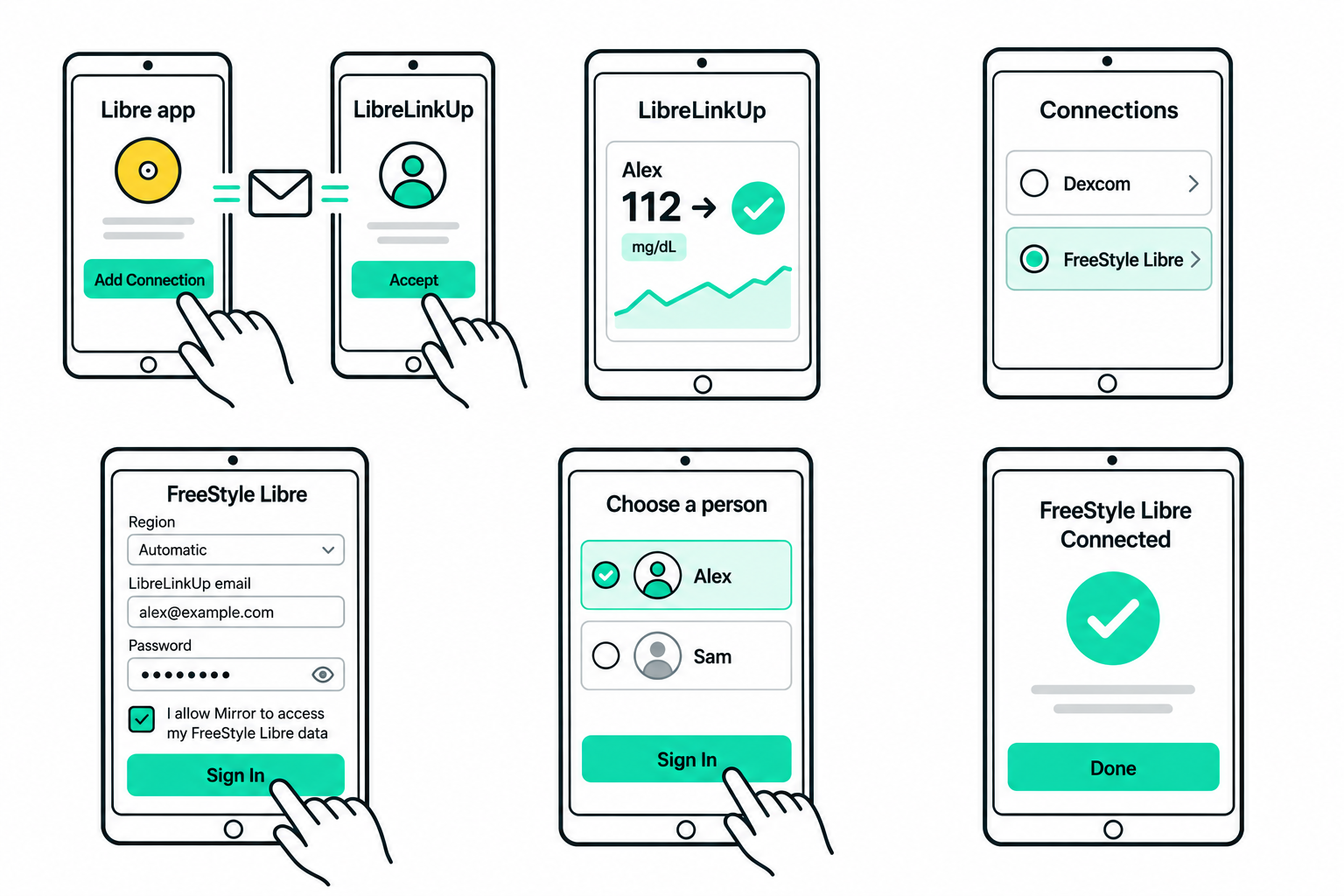
Illustrations show example people and readings. Your layout may vary slightly by device.
Can I use my Mirror or sensor-app login?
Use the LibreLinkUp email and password for the account that can already see this person’s shared readings. Do not assume your Mirror login or another Libre account is the same account.
There is no person available to select.
Open LibreLinkUp directly and confirm you accepted the invitation with the intended email and can see that person. Finish any account prompts in LibreLinkUp, then return to Mirror and try again.
What if the account follows several people?
Select the person who belongs to the active Mirror profile, then tap Sign In again. Check the selected person before saving to avoid attaching another person’s readings to this profile.
The login fails or readings look old.
Confirm the login works in LibreLinkUp and check its reading time, the source phone’s connection, and your internet access. Complete any prompts in the official app. If Mirror shows a wait time after failed attempts, wait before trying again.
How do I disconnect?
With the correct person active, open Settings → Connections → FreeStyle Libre. Tap Disconnect FreeStyle Libre, then confirm Disconnect. This removes Mirror’s saved connection for that profile, not the LibreLinkUp account.