DEXCOM SHARE / HOW TO
Connect Dexcom Share
Get sharing ready in Dexcom, then connect the correct person in Mirror Health. Your Dexcom login and your Mirror login are separate.
Before you start
Have a working Dexcom setup with readings in the official app and access to the sensor wearer’s Dexcom account. Use the family view in Mirror Health on an iPhone or iPad.
Make sure the intended person is the active profile in Mirror before opening Connections. Source connections are saved for that profile. If you are an invited caretaker, use the Caretaker Mode guide instead.
Let’s do it.
One picture. One step.
- 1
Get Dexcom sharing ready
In the sensor wearer’s Dexcom G7 app, open Connections → Share and follow the setup instructions. Enable sharing and complete any setup prompts. Other Dexcom app versions may place Share elsewhere.
Keep the official Dexcom app connected to the internet and confirm it has readings.
- 2
Open Dexcom in Mirror
With the correct person active in Mirror Health, go to Settings → Connections → Dexcom. You will see the connection screen for Dexcom Share.
- 3
Choose your account’s region
Select Region. Choose United States, Outside US, or Japan to match the Dexcom account you are connecting.
Use the account’s region, not a region selected just because you are traveling there.
- 4
Enter the Dexcom login
Enter the sensor wearer’s Dexcom Share username and password. Use the account associated with their Dexcom app, rather than your Mirror Health login or a follower’s account.
Mirror’s username field accepts a username, email, or phone number. Use the identifier that works for your Dexcom account.
- 5
Review and sign in
Read the checkbox about storing your Dexcom login to fetch readings. Check it if you agree, then tap Sign In. Wait for the connection check to finish.
If a wait time appears after failed attempts, let it finish before trying again.
- 6
Check the connection
When Dexcom Connected appears, tap Done. Return to Glance for the selected person and check the reading time and source as readings refresh.
A successful connection does not guarantee a brand-new reading. Mirror displays the data available from the source.
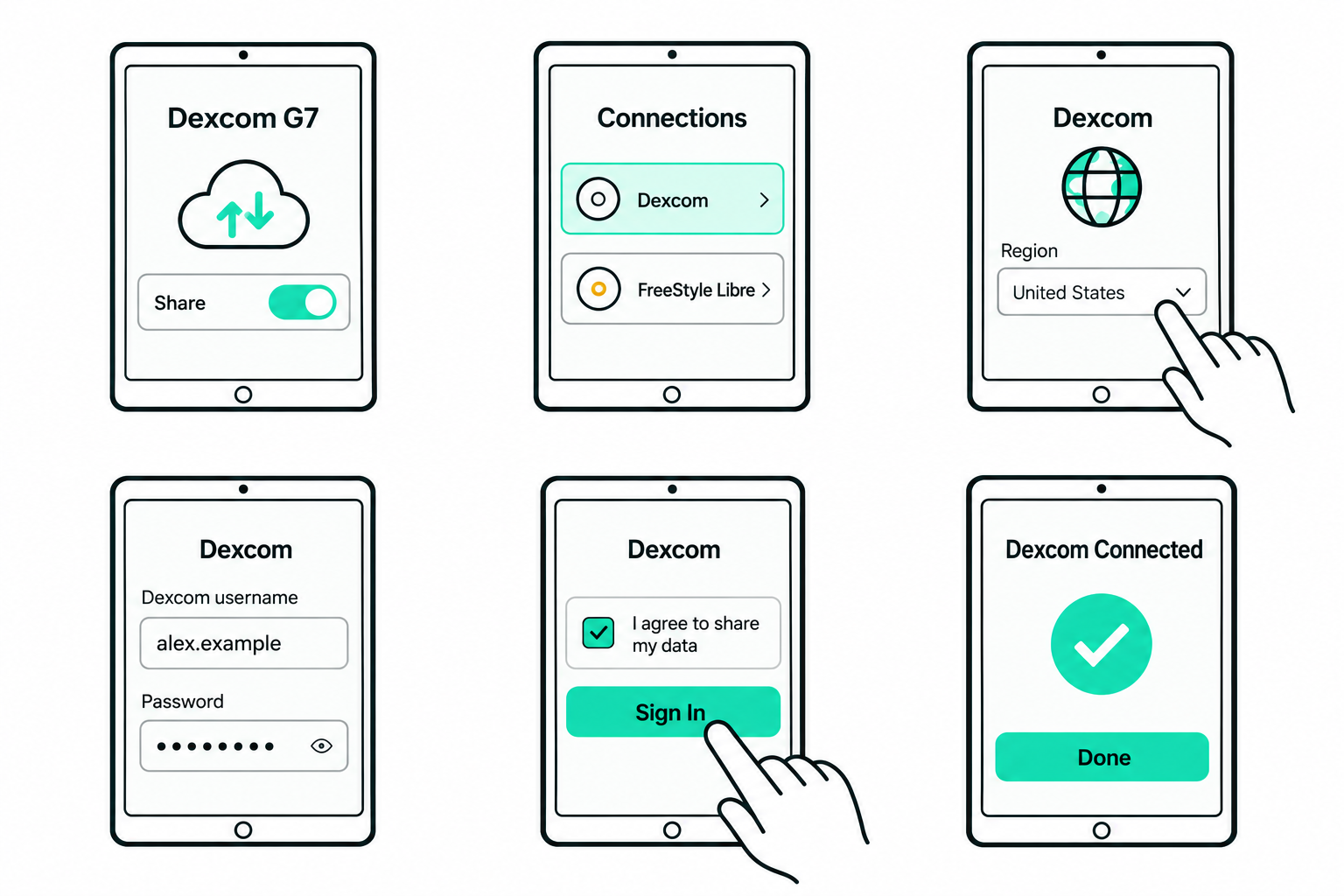
Illustrations show example people and readings. Your layout may vary slightly by device.
Which account do I use?
Use the Dexcom account belonging to the person whose sensor data you want to connect. Your Mirror account signs you into Mirror; it does not sign you into Dexcom. A caretaker with family-approved Mirror access does not need the family’s Dexcom credentials.
Why does Sign In stay unavailable?
Confirm that a Mirror person is active, both login fields are filled in, and the consent checkbox is checked. If the app shows a temporary lock or wait time, wait until it ends.
The login is rejected. What should I check?
Check the username, password, and account region. Confirm the account works with Dexcom’s own services. If you reset its password, update the connection in Mirror too. Avoid repeated guesses if the app asks you to wait.
I connected, but there are no current readings.
Check that the official Dexcom app has a current reading, Share is enabled, and the source phone and Mirror device have internet access. An unavailable or older source reading cannot become live just by refreshing Mirror.
How do I disconnect?
With that person active, return to Settings → Connections → Dexcom. Tap Disconnect Dexcom and confirm Disconnect. This removes that profile’s saved Mirror connection; it does not delete the Dexcom account.